
Action Workflow Elements
Actions perform side effects: they save resources, answer browser requests, show UI feedback, send files, call another workflow, or communicate with users. For workflow authoring patterns, start with Authoring Workflows. For UI response behavior, see UI Integration. For background work, see Async Progress and Jobs.
Common action groups
Section titled “Common action groups”| Group | Elements | Typical use |
|---|---|---|
| Persistence | action/save, action/delete | Persist or remove resources. |
| Client response | action/response, action/set, action/redirect, action/refresh | Return data or instructions to the active browser request. |
| Files and documents | action/convert, action/export, action/viewFile, action/downloadFile | Generate, store, show, or download documents. |
| Communication | action/mail, action/notify | Send email, toast, SMS-style notifications, or other user feedback. |
| Orchestration | action/run | Start another workflow synchronously or asynchronously. |
| Access and roles | action/setRole, action/removeRole, action/resetPassword | Manage user-related side effects. |
Convert documents (action/convert)
Section titled “Convert documents (action/convert)”Options
Section titled “Options”| Name | Type | Description |
|---|---|---|
| value | ContextExpression, String | Raw Data to be converted. |
| file | boolean: false | If the returned file should be saved as a file |
| parse | boolean: false | Fix LateX variables if converting to LateX |
| from | String | The initial format of the Data |
| to | String | The Format to which the Data will be converted |
| filters | (String) Array (table, heading_to_toc) | Names of the LateX filters to apply when converting directly to Latex |
| assets | ContextExpression, (Asset Object) Array | Assets to download and serve to the conversion process |
Asset Object Structure
Section titled “Asset Object Structure”You can serve Assets either with an (unprotected) URL or Base64 encoded.
| Name | Type | Description |
|---|---|---|
| name | String | Filename |
| url | String | Public Url that serves the file. Either http or https |
| data | Base64 String | Raw Data of the asset in Base64 format |
Setting values in the client (action/set)
Section titled “Setting values in the client (action/set)”Tells the client via a webhook response to set field values or field properties in the active resource form. Use it for quick UI feedback, dependent fields, validation messages, or values that are only available on the backend.
Inputs
Section titled “Inputs”| Port | Type | Description |
|---|---|---|
| default | Resource|Resource[] | The resource to use for base variables. |
Outputs
Section titled “Outputs”| Port | Type | Description |
|---|---|---|
| default | Forward | Same output as input. Data is not changed. |
Options
Section titled “Options”| Name | Type | Description |
|---|---|---|
recipes | Dict<string, Recipe> | Field values to set on the current form/resource. |
properties | Dict<string, Dict<string, Recipe>> | Field properties to set by field and selector. Common properties are validation status or validation message. |
add | array | List items or values to add where supported. |
copy | Recipe | null | Optional source object to copy before applying recipes. |
process | boolean | Whether to process legacy values mappings where present. |
Response
Section titled “Response”Webhook-JSON of type set.
Example (1)
Section titled “Example (1)”{ "name": "setProjectDefaults", "type": "action/set", "options": { "copy": null, "add": [], "recipes": { "billing_name": "$customer.name", "billing_email": "$customer.email" }, "properties": [] }}recipes sets fields on the active form from the current workflow context. In this example, $customer must have been loaded earlier in the workflow.
Example (2) - Full Workflow
Section titled “Example (2) - Full Workflow”{ "identifier": "ValidateTaskTime", "title": "Validate task time", "async": false, "entry": "validateTaskTime", "elements": [ { "name": "validateTaskTime", "type": "event/on_change", "set": { "selector": ":selector" }, "to": { "default": { "setWarning": ["default"] } } }, { "name": "setWarning", "type": "action/set", "options": { "add": [], "recipes": [], "properties": { "validateStatus": { "${selector}.hours": "\"error\"" }, "validateMessage": { "${selector}.hours": "\"Hours must be greater than zero.\"" } } } } ], "events": [ { "identifier": "validateTaskTime", "type": "on_change", "module": "tasks" } ]}The on_change event can provide a selector for the changed part of the form. Use that selector when setting properties for a field inside a list item.
Adding an event emitter to a field
Section titled “Adding an event emitter to a field”We have to set the “events” option, and in there set the “on_change” value to a list of event identifiers.
{ "identifier": "hours", "type": "number", "options": { "events": { "on_change": ["validateTaskTime"] } }}action/buildSite
Section titled “action/buildSite”The action/buildSite element builds static sites using different strategies, depending on the site builder driver used.
Options
Section titled “Options”Driver (driver) [string]
Section titled “Driver (driver) [string]”Currently, page-depot is the only supported driver for building static sites.
Template (template) [Entity]
Section titled “Template (template) [Entity]”Entity with the capability SiteBuilderTemplate.
Pages Module (pages_module) [string] (optional)
Section titled “Pages Module (pages_module) [string] (optional)”Module identifier to request the pages. Used by the PageDepot driver.
Sections Module (sections_module) [string] (optional)
Section titled “Sections Module (sections_module) [string] (optional)”Module identifier to request available sections. Used by the PageDepot driver.
Pages Filter (pages_filter) [array] (optional)
Section titled “Pages Filter (pages_filter) [array] (optional)”Brezel filter array for the request to page entities. Used by the PageDepot driver.
Drivers
Section titled “Drivers”The default driver is page-depot.
PageDepot (page-depot)
Section titled “PageDepot (page-depot)”The PageDepot driver communicates with the external PageDepot service.
Capabilities
Section titled “Capabilities”SiteBuilderTemplate
Section titled “SiteBuilderTemplate”Defines a basic template for the site builder.
| Field | Type | Description |
|---|---|---|
| name | Text | A unique identifier for the template. |
| views | Multiselect | View entities with code. |
PageDepotTemplate
Section titled “PageDepotTemplate”Defines a template for web pages specific to the PageDepot service. This capability is a part of the implementation logic behind the scenes.
| Field | Type | Description |
|---|---|---|
| name | Text | A unique identifier for the template. |
| base | Text | A reference to the base layout for the template. |
PageDepotLayout
Section titled “PageDepotLayout”Defines the general layout of a web page. This includes how sections, slots, and scripts should be arranged.
| Field | Type | Description |
|---|---|---|
| name | Text | A unique identifier for the layout. |
| base | Text | A reference to the base layout. |
| scripts | Code | Code snippets written in JavaScript to enhance the page functionality. |
| slots | List | A list of slots that are sub-parts of a layout. |
The ‘slots’ field holds a list of slot objects. Each ‘slot’ defines a specific area on the page where sections can be inserted. Within a layout, different slots can be defined to include different sections of the page.
Each slot object contains the following sub-fields:
| Field | Type | Description |
|---|---|---|
| slot | Text | A unique identifier for the slot. |
| sections | List | A list of sections that are inserted into this slot. |
Under a section, following sub-fields are present:
| Field | Type | Description |
|---|---|---|
| section | Select | The name of the section that is added to the slot. It selects from the available ‘sections’. |
| params | Map | A map of parameters used within the section. |
| subslots | Json | A JSON object denoting any subsections within the main section. |
| provide_slot | Text | The name of the slot that this section provides for nesting additional sections. |
By arranging and configuring different slots and sections within each slot, you can create complex yet easily manageable page layouts. The actual contents of the sections and their respective parameters can be customized as per needs and are not defined in the PageDepotLayoutCapability. They would fall within other capabilities, such as PageDepotSectionCapability.
PageDepotPage
Section titled “PageDepotPage”Defines a structure for a single webpage. It gives details about how the title, description, layout, script, etc. should be formed.
| Field | Type | Description |
|---|---|---|
| name | Text | A unique identifier for the page. |
| title | Text | The name shown on the tab of the browser. |
| dynamic_title | Code | A dynamic title that changes according to some conditions. |
| layout | Select | The layout type in which the page should be presented. |
| description | Textarea | A brief description of the page. |
| scripts | Code | Code snippets written in JavaScript to enhance the page functionality. |
| slots | List | A list of slots that are sub-parts of the page. |
PageDepotSection
Section titled “PageDepotSection”Defines a section - a subset of the layout. Its purpose is to bring in variants in the layout.
| Field | Type | Description |
|---|---|---|
| name | Text | A unique identifier for the section. |
| type | Select | The type of the section. It can either be Astro or Vue. |
| vars | Map | A map related to the functioning of the section. |
| code | Code | Code that defines the functionalities of the section. |
action/deploySite
Section titled “action/deploySite”The action/deploySite element deploys static sites built by action/buildSite.
Inputs
Section titled “Inputs”- Default (
default): a stored site, output byaction/buildSite
Options
Section titled “Options”Deployer (deployer) [string]
Section titled “Deployer (deployer) [string]”Currently, page-depot is the only supported driver for deploying static sites.
Hostnames (hostnames) [array<string>]
Section titled “Hostnames (hostnames) [array<string>]”List of hostnames the site should be available under. Used by the PageDepot driver.
Deployers
Section titled “Deployers”The default driver is page-depot.
PageDepot (page-depot)
Section titled “PageDepot (page-depot)”The PageDepot driver communicates with the external PageDepot service.
Running another workflow (action/run)
Section titled “Running another workflow (action/run)”Runs another workflow. This can be either synchronous or asynchronous.
Options
Section titled “Options”| Name | Type | Description |
|---|---|---|
workflow | string | Identifier of the workflow to run. |
async | boolean | null | Whether the called workflow should run asynchronously. |
queue | string | null | Optional queue for asynchronous runs. |
scope | boolean | Whether to create a new context for the called workflow. |
input | object | array | Variables to set in the new context when scope is true. |
If scope is false, the called workflow runs in the current context. Existing variables remain accessible.
If scope is true, a new context is created for the called workflow. Values from input are set as variables in that new context. The output of action/run is the output of the last element of the called workflow.
{ "name": "startPublishJob", "type": "action/run", "options": { "workflow": "PublishProject", "async": true, "queue": null, "scope": true, "input": { "project": "$project" } }}The previous context is restored after action/run completes.
Notify (action/notify)
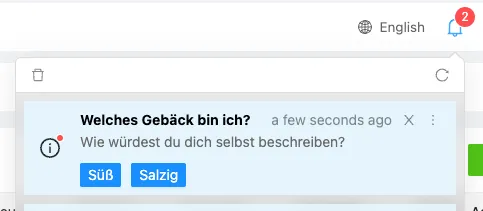
Section titled “Notify (action/notify)”Sends a notification to the notification center and over Web push, if available.
Options
Section titled “Options”Below are the available options for creating notifications:
-
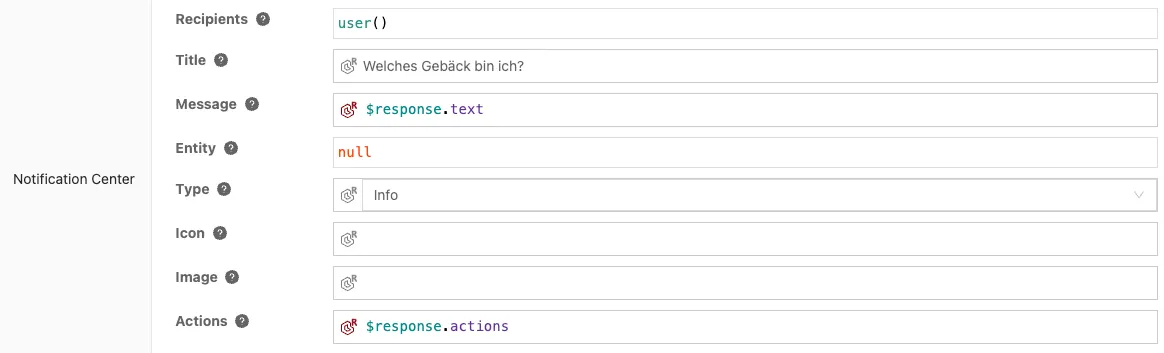
recipients: Specifies the recipient of the notification, which can be a user, a list of users, a role slug, or a list of role slugs. If this field is omitted, the notification will be sent to the current user. If set tonullin recipe mode, the notification will not be sent to anyone. -
title: Specify the title of the notification. -
message: The message of the notification. -
entity: Append an entity, such as aFileentity, to the notification using this field. -
type: The type of notification, which can be one ofinfo,warning, orerror. -
icon: The icon to be displayed in the notification. You can provide an absolute URL or a virtual path pointing to a Brezel file (e.g.,/static/icon.png). If you use a virtual path, a permanent public absolute URL to the file will be generated, containing a share token. If you are in recipe mode, you can also use a file entity, with the same sharing behavior as the virtual path. -
image: The image to be displayed in the notification. You can provide an absolute URL, a virtual path, or a file entity. -
actions: Provide a list of action buttons to display in the notification. You can provide a tokenized list of action names (e.g., “Accept,Deny”), an array of action identifiers (in recipe mode), or an array of action dictionaries (in recipe mode), where each dictionary specifies the action button properties.
Outputs
Section titled “Outputs”action: fired when the user clicks on an action, with the selected action identifier as the data.